


AirMirror: TV Cast & Mirror
4.3135.00 Reviews
App Specs
- Version
- 1.5.1
- Updated On
- License
- Free
- Downloads
- 5,000,000+
- Developer
- BoostVision
- Categories
- Video Players & Editors
- Platform
- Android
Screenshots


 Analysis by AppCompare
Have you ever found yourself wanting to beam your phone’s screen onto a bigger display? If you’re like me, sometimes you just want to share photos or videos with friends and squinting at a tiny phone screen just doesn’t cut it. Enter AirMirror: TV Cast via AirPlay, a nifty app that promises to make screen sharing as easy as pie. I decided to take it for a spin to see if it lives up to the hype.
A shared screen for ordinary household moments
The most natural place for AirMirror is a room where people already gather around a television. I can picture using it after dinner to show relatives a handful of phone photos, or letting a friend put a clip on the big screen instead of passing a phone from person to person. That simple change makes shared viewing more comfortable, especially when the group wants to talk about what is on screen rather than crowd around a small display.
It is also useful for spontaneous plans: someone finds a video worth showing, and the group can move from watching individually to watching together. I would treat that as a practical convenience, not as a promise that every video or every television will behave identically. The receiving TV needs to suit the AirPlay casting approach, and the phone and TV need to be on the same Wi-Fi network for the setup described here.
Set expectations before you connect
AirMirror is an Android app from BoostVision, built around sending content to an Android TV receiver through AirPlay. That detail matters when choosing it: it is not a general-purpose answer for every screen in the house. If the television does not support the relevant AirPlay receiving arrangement, or if you need to connect over a different method, a TV’s own casting option or a platform-specific receiver may be a better fit.
I would also distinguish between mirroring a phone and casting a particular item. Mirroring makes the phone’s screen the source, so notifications or other visible activity may appear on the television while you use it. Before starting a shared session, I would close anything private and check what is displayed on the phone. That small habit is more useful than assuming a casting app can manage personal boundaries for you.
For a household with several phones, it helps to agree who is controlling the session. The person who starts casting can keep the phone nearby and stop the display when the group is finished. That avoids awkward moments when someone else reaches for the TV remote or assumes a cast will end on its own. I would not choose the app on the expectation of built-in household profiles or parental controls; its appeal is the straightforward act of sharing a screen.
Coordination and practical trade-offs
A low-friction routine makes shared use easier. I would first check that the television is ready to receive a cast, then connect the phone and select the content. If the TV is not showing up, checking that both devices are on the same Wi-Fi network is a sensible first step before trying again. This is especially helpful when a guest’s phone joins a different network from the one used by the TV.
Worth Reading Before You Choose

EA SPORTS FC Mobile 26 Is a Bigger Football Game, but It Takes Time

Flipboard Shows What News Apps Must Do Beyond the Feed

Switching to Android Auto Means Rethinking Your Driving Routine

Google Calendar Makes a Crowded Week Easier to Manage

Ludo King Makes the Most of the Minutes Between Plans

Baby Panda World Brings Quick Play to Modern Phones, but Its Game Library Feels Busy
There is a trade-off between mirroring everything and choosing a single item to show. Full-screen mirroring is flexible, but it means the phone remains part of the presentation and may need to stay unlocked and in the user’s hand. For a quick photo share, that is usually fine. For a longer viewing session, I would compare it with a service’s own TV app or a built-in cast button, which can be more convenient when available because playback can be controlled without keeping the whole phone display on the TV.
AirMirror sits in the video players and editors space, but it is best understood as a bridge between a phone and a compatible television rather than as a replacement for a streaming library or a full media player. If I already have the video available in an app that supports direct casting to my TV, I would try that route first. If I want to show something that is already on my phone, screen mirroring can be the more direct option.
Getting Started with AirMirror
First things first, getting AirMirror: TV Cast via AirPlay up and running was pretty straightforward. After downloading it from the app store, I was met with a clean and intuitive interface. The setup process was quick, prompting me to ensure that both my phone and the TV were connected to the same Wi-Fi network. A couple of taps later, and I was in business. No complicated instructions or technical jargon—just how I like it!
Features that Stand Out
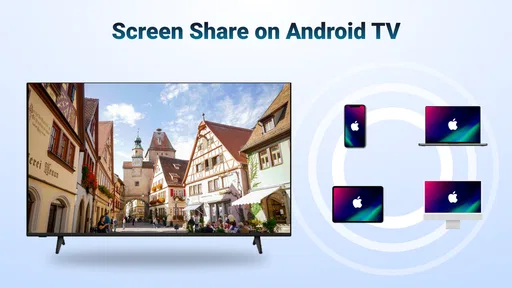
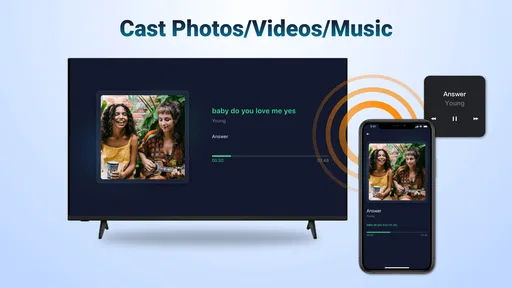
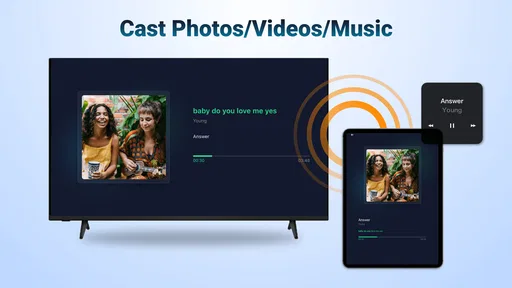
One of the coolest features I discovered is the app’s ability to mirror your entire phone screen seamlessly. Whether it's sharing vacation photos or streaming a video, the process was smooth and lag-free. I tested it with different types of content, and the transition was slick every single time. There’s even an option to cast music directly from your phone to the TV, transforming any gathering into a mini-concert.
The app also supports a variety of file types, which is perfect for presentations or sharing documents with a group. Who knew work meetings could become so much easier?
Choosing what to show—and what to keep private
Those broader uses make it worth thinking about the audience before you start. For a work presentation, I would prepare the material on the phone first and open only what I intend to share. For a relaxed evening, I would line up the photos or video before connecting, rather than searching through personal apps while the television mirrors the screen. The point is not to make casting feel formal; it is to avoid putting private content in front of everyone by accident.
Music is another good shared-use case when the phone already has the selection you want. It can turn a quick visit into a more social moment without asking everyone to pass around a device. The practical limitation is that the phone is still the source of the session, so I would keep it close and avoid letting the group assume that the TV can independently browse or continue playing after the phone is put away.
Compatibility and Ease of Use
Now, you might be wondering about compatibility. The great news is that AirMirror works with most Smart TVs that support AirPlay. During my testing, I connected to a couple of different TV models, and it worked like a charm each time. What’s even better is that the app doesn’t require any additional hardware or cables. Simply connect and cast. Easy peasy!
Another point worth mentioning is the app’s user-friendly design. The developers nailed it with simple navigation and clear instructions. Even if you’re not a tech whiz, you’ll find it a breeze to use.
What to check when a TV does not appear
In a shared home, the connection can be less predictable when people use different networks or guests bring their own phones. I would check the Wi-Fi match first, then make sure the TV is in a state where it can receive a cast. If that does not solve it, switching to the television’s own casting method may be quicker than spending the evening troubleshooting. AirMirror is most appealing when the household’s devices already fit its route; it is less compelling if you regularly move between incompatible TVs.
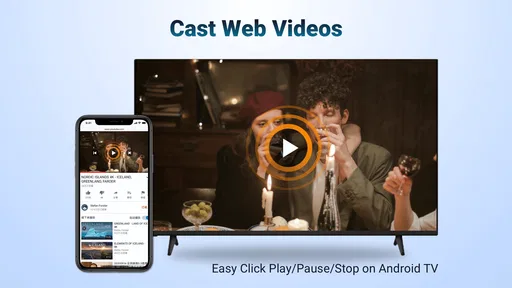
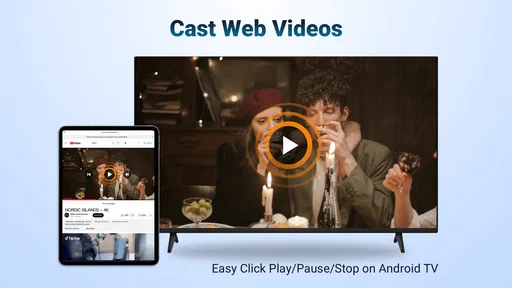
It is also worth deciding whether you need mirroring at all. If the goal is to play one film or a single online clip, an app’s built-in TV playback may avoid showing phone notifications and may be easier to control. If the goal is to show a phone screen, a slideshow, or material that has no convenient TV playback option, mirroring is the more flexible choice. That distinction helps set realistic expectations before inviting everyone to sit down.
Privacy and Security
In today’s world, privacy and security are huge concerns. Thankfully, the app seems to take this seriously. There’s no account registration required, and it doesn’t store any personal data. You can cast with peace of mind, knowing that your information remains private.
"Casting made simple – AirMirror truly delivers on its promise."
Age, trust, and shared-device boundaries
AirMirror is rated for Everyone, so its intended audience is broad. In a family setting, though, an age rating does not replace ordinary supervision around what is mirrored. A child using a phone to share a video can also expose whatever is open on that phone, so I would help younger users choose the content first and keep control of the session with someone who understands what is being shown. That is a household habit, not a feature I would expect the app to enforce.
The no-account approach may make occasional use feel simpler because there is no separate profile to create just to share a screen. At the same time, it means coordination rests with the people using the TV: agree who is casting, check the display before handing over the phone, and stop when the group is done. If your priority is managed child access or separate viewing profiles, a service designed around those controls is a better match.
Who will get the most from it
I see AirMirror as a good choice for Android users who often want to show phone content on a compatible Android TV and value a direct, occasional connection over a more elaborate media setup. It suits a household that shares photos, short videos, music, or presentation material in the same room. It is less suited to someone who expects every television to connect in the same way, wants hands-off playback, or needs parental settings and account-based access boundaries.
The app is free to install, though it includes in-app purchases priced from $1.99 to $10.99 per item. I would start by checking whether the basic casting workflow fits the TVs and phones I actually use before paying for anything. Its current version is 1.4.8, and it runs on Android 6.0 or later. It has a 4.4 average from around 16,000 ratings, with more than a million installs; that gives a sense of its reach, but it does not guarantee a smooth connection in every home network.
The Overall Experience
After spending some quality time with AirMirror: TV Cast via AirPlay, I’m genuinely impressed. It offers a hassle-free way to share and enjoy content on a larger screen. Whether you’re using it for entertainment or professional purposes, it ticks all the boxes. The app runs smoothly, and most importantly, it just works.
BoostVision released the app on April 24, 2023, and its straightforward purpose remains its strongest point: connect a phone to a suitable TV and share what is on the screen. For me, the best results come from treating it as a convenient household tool, not as a universal casting system. A quick network check, a little care with what is visible, and a clear understanding of who is controlling the phone make the experience more dependable.
If you’re looking for a reliable and straightforward screen-casting solution, I’d highly recommend giving this app a shot. It’s perfect for both casual users and those who need a bit more functionality from their casting app. So, why not download it and take your viewing experience to the next level?
My household verdict
I would recommend AirMirror when the goal is to bring phone content into a shared room with minimal setup and the TV is compatible. It is particularly handy for informal gatherings where people want to take turns showing something, provided one person stays responsible for the phone and checks what is on screen. For routine streaming from services that already offer direct TV playback, I would use those built-in options instead; they are often a cleaner fit for longer viewing.
Overall, this is a focused tool rather than an all-purpose entertainment hub. Its strongest case is making a personal screen available to a group without cables or extra hardware, while its main trade-offs are compatibility, dependence on the phone, and the need for users to manage privacy and turn-taking themselves. If those limits fit your household, AirMirror is an approachable option to keep available for the moments when everyone wants to see the same thing.
Pros
- Easy setup with intuitive interface.
- Supports multiple device connections.
- High-quality video streaming.
- Low latency for real-time casting.
- Compatible with various smart TVs.
Cons
- Limited free version features.
- Requires stable Wi-Fi connection.
- Not all devices fully supported.
- Occasional lag on older devices.
- Subscription required for premium features.
FAQs for AirMirror: TV Cast & Mirror
What is AirMirror: TV Cast via AirPlay?
AirMirror: TV Cast via AirPlay is an app designed to enable users to mirror their Android or iOS device screens to a TV using AirPlay technology. This app is ideal for streaming videos, displaying photos, and playing games on a larger screen, providing a seamless viewing experience across devices.
How do I set up AirMirror: TV Cast on my device?
To set up AirMirror: TV Cast, download the app from the App Store or Google Play. Ensure your device and TV are connected to the same Wi-Fi network. Follow the in-app instructions to enable AirPlay on your TV, and then select your TV from the list of available devices to start casting.
Is AirMirror: TV Cast compatible with all TVs?
AirMirror: TV Cast is compatible with most smart TVs that support AirPlay. However, older models or TVs without AirPlay functionality may not work. It's advisable to check your TV’s specifications or consult the manufacturer to ensure compatibility before downloading the app.
Does AirMirror: TV Cast require an internet connection?
Yes, AirMirror: TV Cast requires both your device and your TV to be connected to the same Wi-Fi network. While the app itself does not require internet for casting, a stable network connection is essential for smooth streaming and optimal performance.
Are there any in-app purchases or subscriptions required?
AirMirror: TV Cast offers a free version with basic features, but it may include ads. For an ad-free experience and access to premium features, users can opt for in-app purchases or a subscription plan. Detailed pricing and feature information can be found within the app’s settings.


